

Using Multiple Agents
Guide on selecting, mentioning, and collaborating with multiple AI agents in Team Mode
Learn how to mention and collaborate with multiple AI agents simultaneously in Atoms to accelerate your application development workflow.
How to Choose and Use Different Agents
Simply share your project requirements in the prompt box, and Team Leader Mike will automatically assign the right specialized team members to your task.
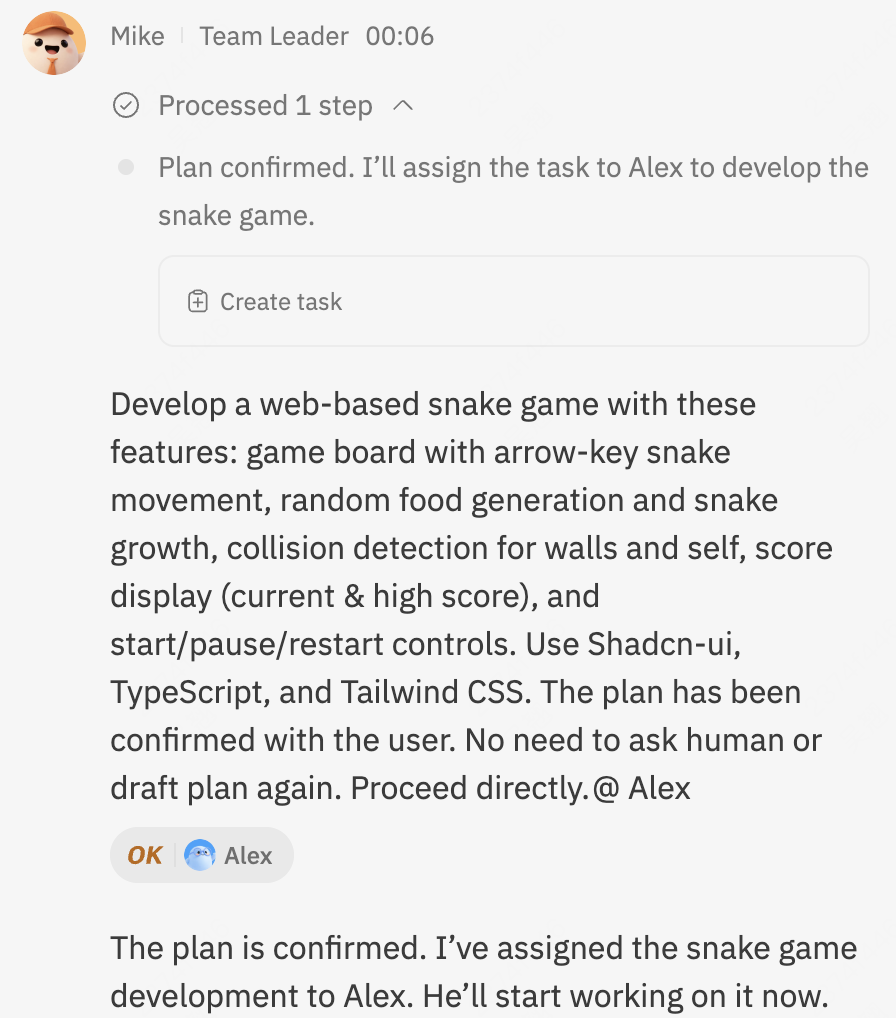
If you are already familiar with each agent's specific strengths, you can also @mention them directly to handle specific tasks, which speeds up execution and delivers more tailored results.
Mentioning Multiple Agents Simultaneously
Yes! You can mention one or multiple agents in the same request when you are using Team Mode.
Step 1: Open the Agent Selection List
In Team Mode, type an at sign (@) in the prompt box to open the agent list dropdown, then select the agents you want to involve in your request.
Step 2: Parallel Multi-Agent Execution
Atoms will send your request to each mentioned agent separately. Each agent works independently based on its assigned role and specialized capabilities.
For example: A Product Manager agent may create a Product Requirement Document (PRD), an Architect agent may design the system structure, a Data Analyst agent may define database schemas, and a Team Leader agent will coordinate the overall workflow.
What to Do If You Do Not See the Agent List
Agent @mentions are exclusively available in Team Mode.
- Switch to Team Mode: Click the mode button in the bottom-left corner of the prompt box to open the menu, then toggle on Team Mode.
- Switching from Engineer Mode: If you are currently in Engineer Mode and type
@, Atoms will display a prompt asking you to switch modes before mentioning agents.
Select Team to switch modes, then type @ again to choose your agents.